The Problem
The help desk team was spending significant time on a common scenario: a user calls in unable to log in, and the technician needs to figure out why. Is the password expired? Is the account locked? Is it a permissions issue?
The challenge was compounded by the company's infrastructure: three separate Active Directory domains. Technicians had to manually connect to each domain, run separate queries, and mentally piece together the full picture. Even experienced staff found this tedious and error-prone.
The Pain Points
Manual AD lookups across 3 domains. No visual indicators for urgent issues. Group comparison required exporting to Excel. Slow resolution times frustrated both techs and end users.
The Goal
One tool that queries all domains instantly, highlights problems visually, and lets techs compare user permissions side-by-side. Turn a 5-minute task into a 10-second lookup.
The Solution
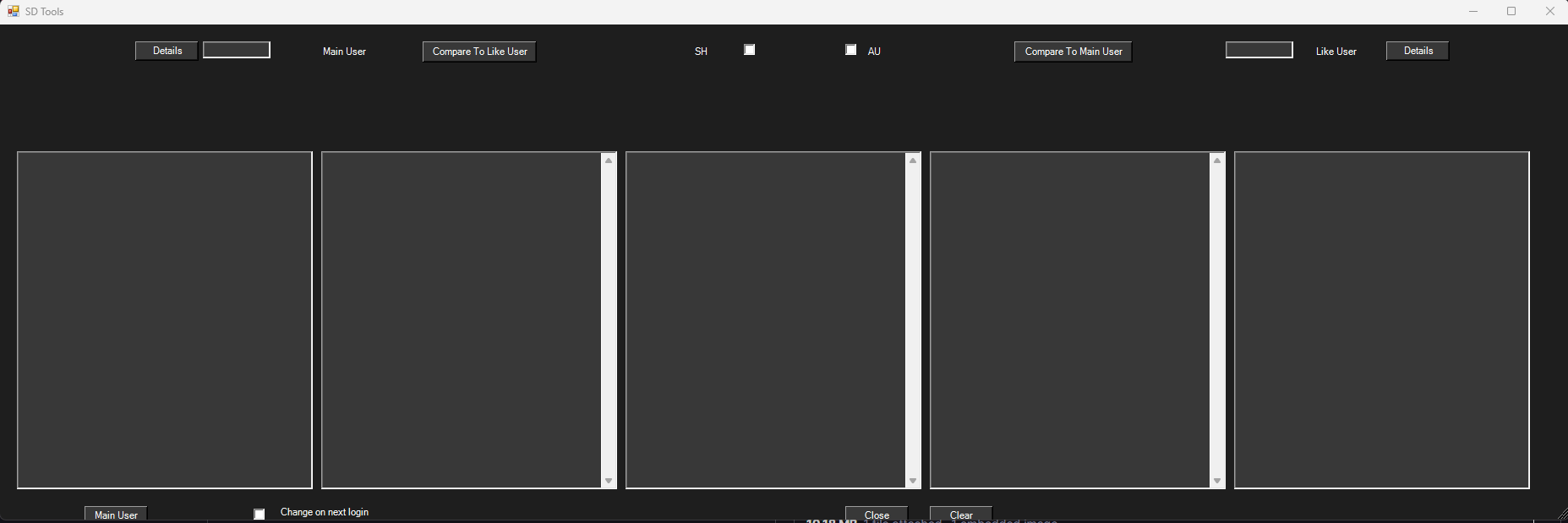
I built a PowerShell-based desktop application with a WinForms GUI that gives technicians a single pane of glass into all Active Directory account information. The interface was designed around the actual workflow: type a username, see everything you need, take action.
Key Features
Visual Status Indicators
Color-coded highlighting instantly shows expired passwords, locked accounts, and other issues.
Multi-Domain Support
Queries all three company domains simultaneously with a single lookup.
Group Comparison
Compare group memberships between two users to quickly identify missing permissions.
Instant Results
Optimized queries return results in seconds, not minutes.
Technical Approach
The application is built entirely in PowerShell, leveraging the ActiveDirectory module for domain queries and System.Windows.Forms for the GUI. Key technical decisions included:
Parallel domain queries: Rather than querying domains sequentially, the tool uses PowerShell runspaces to query all three domains simultaneously, significantly reducing wait times.
Credential management: Secure handling of domain credentials with the ability to authenticate to each domain independently, respecting the company's security policies.
Smart caching: Frequently accessed data like group lists are cached locally to speed up subsequent lookups.
#-------[Functions]---------------
                    $auCheckBox.Add_CheckStateChanged({
                    if($auCheckBox.Checked)
                    {
                    $Global:server = "AU.Int.SONICHEALTHCARE"
                    Import-Module -Name ActiveDirectory
                    $shCheckBox.Enabled = $false
                    }
                    })
                    $shCheckBox.Add_CheckStateChanged({
                    if($shCheckBox.Checked)
                    {
                    $Global:server = "sonichealth.com.au"
                    Import-Module -Name ActiveDirectory
                    $auCheckBox.Enabled = $false
                    }
                    })
Tech Stack
Impact
The tool was adopted by the entire help desk team and became part of their standard troubleshooting workflow. Key outcomes included:
Beyond the time savings, the visual highlighting reduced errors—technicians could immediately see the root cause instead of having to interpret raw data. The group comparison feature alone saved hours per week that were previously spent manually comparing user permissions.
What I Learned
This project reinforced the value of building tools that fit into existing workflows rather than forcing users to adapt. By observing how the help desk team actually worked, I was able to design an interface that matched their mental model.
I also gained deep experience with PowerShell's runspace architecture for parallel operations, and learned how to balance feature richness with simplicity in a utility application.
Note: This was an internal tool built for a previous employer. Due to NDA restrictions, source code and detailed implementation specifics cannot be shared. The concepts and patterns described here represent my approach to the problem.